
As a Cricut beginner, you have just opened your new Cricut machine and are eager to learn ‘how to Setup Cricut Machine‘. If you’re looking for expert guidance on setting up your new crafting machine and completing your first project, we’re here to help. After reading this guide, you will have the confidence to launch your first projects and beyond.
Important: You can find a page called “How Tos” in the ‘Cricut Design Space‘. On this page, you will find helpful guides, a wide variety of videos, and checklists to help you get started. The content on this page is organized in such a way that makes it easy to find whatever you need.
To set up your Cricut, you first need to learn ‘How to download Cricut Design Space‘, as well as how to connect it to your computer, so that you can launch your first project. Let’s begin!
How to Set Up Cricut on Your Computer?
Let’s learn how you can set up your machine on your computer with the help of the step-by-step instructions given below:
Step 1: Prepare Your Machine and Device for Setup
- Power on your computer and the machine to begin the setup process.
- Ensure your computer and the machine are within 10-15 feet of each other for optimal connectivity.
- Now, open your web browser and type design.cricut.com/setup.
Step 2: Enter Your Cricut Machine Model
- Open Cricut Design Space, and it will ask you to enter your machine model.

- Enter your Cricut machine model in the search box.
Step 3: Download and Install Cricut Design Space
- Click on the ‘Download button‘, select it, and agree to the terms and conditions.
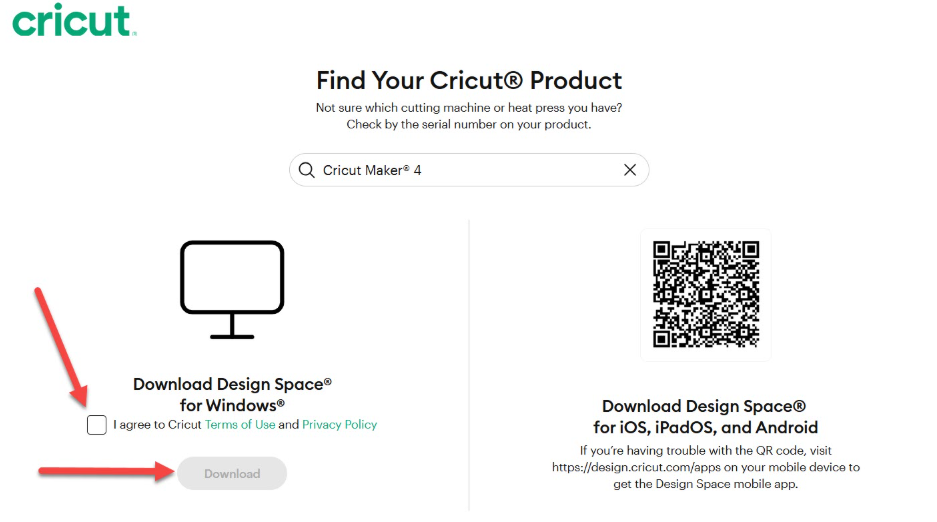
- Next, follow the website’s instructions to download the installer file.
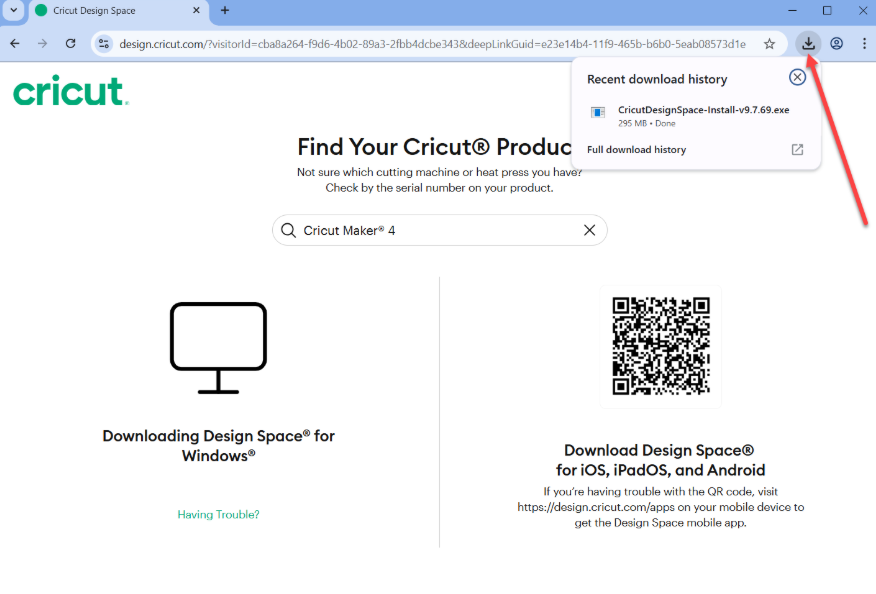
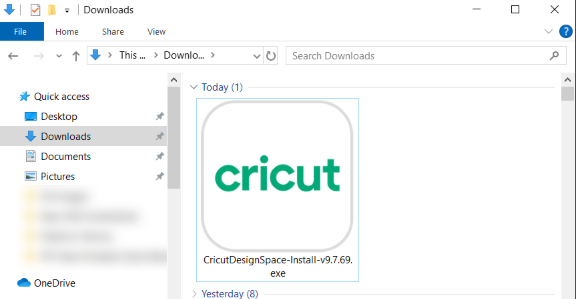
- Once downloaded, double-click the installed file in your Downloads folder to start the installation process.
- A setup window will appear, displaying the installation progress.
Step 4: Log in to Your Cricut Account ID
- Next, ‘Sign In‘ with your account and password.
- If you’re new or haven’t made a Cricut account yet, you can click on Create Cricut ID.

Step 5: Fill Out the Form Properly
Fill out the form with your details. Review your details carefully and select the checkbox confirming your agreement to Cricut’s Terms of Use and Privacy Policy.

The next step is to add your crafting machine to your system so it can receive instructions from the Cricut Design Space.
Connecting Your Cricut Machine
After downloading and installing Cricut Design Space, you need to learn how to connect your machine to your device in order to complete the full setup process. Follow the step-by-step instructions to connect your crafting machine to your computer:
Step 1: Open Cricut Design Space on Your Device
- Open Cricut Design Space and click on your name in the top right corner of the home page.
- A drop-down menu will pop up, and then click on “Settings.“
Step 2: Navigate to Settings
- In the Cricut Design Space Settings window, click on the second tab, “Machines.”
- After that, click the Start button next to “New Product Setup.”
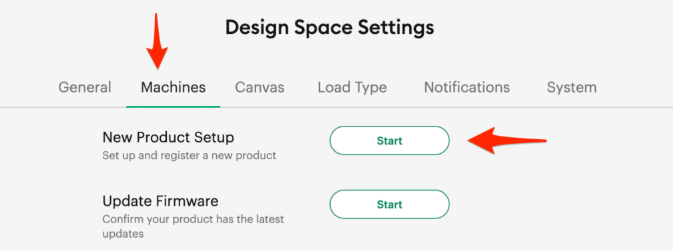
Step 3: Select Your Machine
- Make sure your Cricut machine is plugged in and turned on.
- Next, connect your machine to your computer. The next window will ask you to choose between Bluetooth and USB.
There are two ways to connect your machine to your computer:
- You can use a Bluetooth (wireless) connection.
- You can use the included USB cable, where applicable.
Method 1: Using USB
- Plug the USB cable into your machine next to the power inlet, and then connect the other end to your computer.
- Locate your machine from the drop-down menu, then click Continue.

- Select the checkbox and click on the Activate button.
- Once connected, the machine will be displayed as connected.
Method 2: Via Bluetooth
- Turn ‘Bluetooth off‘ and on again before trying to connect via Bluetooth.
- Check nearby devices. Within some time, you’ll see your machine in the list.
- Select your ‘Cricut machine model‘ from the list.
- Your crafting machine is now connected to your computer.
Note: Ensure your Bluetooth settings are enabled before proceeding, especially if you are using Windows.
Step 4: Complete Your Setup Process
- Your setup is complete now. Click Next.
- On the next screen, if you want to subscribe to ‘Cricut Access‘, you can choose that, or you can choose to do so at a later point.

- After completing the setup process, Cricut Design Space will prompt you to perform a test cut to verify the setup is complete.
Congratulations on learning ‘How to Setup Cricut Machine‘. Now, you’re fully ready to launch your first project.
Frequently Asked Questions (FAQs)
Why Does My Cricut Keep Losing Connection?
If you’re experiencing issues with a USB cable, try using a different USB cable. If you’re experiencing connectivity issues, it might be due to compatibility issues. Below are the minimum system requirements for Windows and Mac:
- For Windows: You will require Windows 10 or later, 2 GB of free disk space, a Dual-Core Intel or equivalent AMD processor, and 4 GB of RAM.
- For macOS: You will need macOS 11/12 or later, 4 GB of RAM, a 1.83 GHz processor, and 2 GB of free disk space.
What Do I Need to Start Using My Cricut?
To get started with your new crafting machine, you’ll also need the Cricut Design Space software and essential tools for your first project, such as scissors, weeding tools, mats, and transfer tape.
How to Download Cricut Design Space on Computer?
Follow the instructions given below to download Cricut Design Space:
- Open your Updated Web browser.
- Type design.cricut.com/setup.
- Enter your Cricut machine model within the search box.
- Next, tick the checkbox to agree to the Cricut terms of use.
- Then, click on the Download button.
- Double-click the .exe file from the Downloads folder.
- If a message asking permission to install appears, click “Yes” or “Allow.”
Why Won’t My Phone Connect to My Cricut?
To troubleshoot such an issue, try the following steps:
- Restart your Cricut Machine, Operating system, and your Wi-Fi router.
- Unpair and re-pair your Cricut machine from your device’s Bluetooth settings.
- If Using a USB connection, try different cable or USB port.
- When using Bluetooth, ensure it’s enabled and your machine is within the range of 10-15 feet.
- Check for firmware updates for your machine through the Cricut Design Space Application
- Consider system compatibility if your device is older or has limited resources.
.